Your synths and the built-in sound
TranceTools plays each part on the synths in your DAW. Here's how to link them, how the built-in sound works when you want a quick reference, and how to get the matching Vital presets.
Play it on your own synths
TranceTools is made to play the synths you've already chosen in your DAW. Link each part to its own track and instrument, and the idea sounds like your track while you write it.
Under each part's name in its lane, in Simple and Pro, is where it plays (see Where each part plays):
- App, linked to Ableton Live or Bitwig Studio: choose the part's track. Tracks named after a part ("Bass", "Lead", "Pad" and so on) are picked for you.
- App, any other DAW: the app sends each part from the TranceTools MIDI port on its own channel (Chords 1, Bass 2, Arp 3, Lead 4, Pluck 5, Pad 6, Acid 7, Drums 8, FX 9). Set a MIDI track's input to that port and channel, and monitor it.
- Plugin: each part comes out of the plugin as MIDI on the same channels. Route each channel to your synth's track.
Feel, the gate, pump (CC 11), filter moves (CC 74) and the Song's automation go out with the notes, so map those CCs in your synth to hear them. Details for each DAW are in Plugin, app and DAW set-up.
The built-in sound, for reference
The built-in sound is a set of synths inside TranceTools: supersaws, plucks, pads, basses, a sliding 303, drum kits and FX, through an echo, a reverb and a limiter. It's there for reference: to preview an idea before your DAW is set up, and for quick audio exports. For the real thing, play it on your own synths.
Turn it on with the speaker button in the top bar.
- In the app, it plays every part that doesn't have a DAW track (every part, when no DAW is linked).
- In the plugin, every part plays on the plugin's own audio output, while the MIDI still goes out on channels 1 to 9.
Click the speaker for a menu: Built-in sound (with the output it's on), your DAW's tracks, or Set Up a DAW….
Four sounds per part
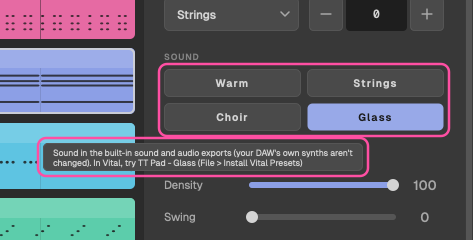
Each part's inspector has a Sound row (Kit for the drums) with four choices:
| Part | Sounds |
|---|---|
| Lead | Supersaw, Pluck lead, Soft square, Screamer |
| Chords | Supersaw, Stab, Piano, Organ |
| Pad | Warm, Strings, Choir, Glass |
| Bass | Saw, Sub, Reese, Pluck |
| Arp | Pluck, Bell, Saw, FM |
| Pluck | Classic, Marimba, Pizz, Harp |
| Acid | 303, Squelch, Rubber, Distorted |
| Drums | 909, 808, Hard, Psy |
The sound is saved with the idea, can be undone, and carries on to later ideas. It plays in the preview and in audio exports; the MIDI is the same whichever you choose. A sound picked while a chord is held takes over straight away. Each chip's tooltip names the Vital preset made to match it.
When the chips are dimmed
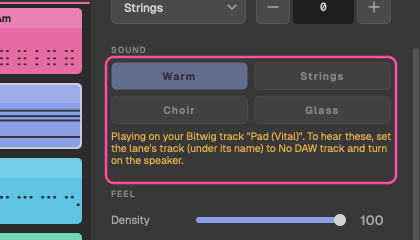
The Sound chips only change the built-in sound. When a part plays on a DAW track, or the built-in sound is off, they dim and tell you why, for example Playing on your Bitwig track "Pads". To hear the built-in sounds for that part, set its track (under its name in the lane) to No DAW track (built-in) and turn the speaker on.
Volume and pan Pro only
The inspector's Mix section sets each part's volume (in dB, up to about +2 dB) and pan. Double-click either one to reset it. They shape the built-in sound, the stems and audio exports; the MIDI is left alone. Changing the mix doesn't add a step to the history.
A sound that breathes
The built-in sound moves like a mixed track.
- Sidechain pump. The chords, pad, bass, arp, pluck and acid, and the echo and reverb with them, duck on each kick and swell back. How deep depends on the genre: in Uplifting the pads and chords pump hardest, the bass a little, the lead not at all. A kick playing in your DAW keys it too.
- Moving filters and reverb. Every part's filter, resonance and reverb send follow the idea's automation (CC 74, 71 and 91), smoothly, so sweeps never click.
- Dynamics. Notes played harder sound brighter, leads and chords most.
In Song, each section writes its own movement: parts come in filtered in the intro and open up, the pad and lead open slowly through the breakdown and its last note rings into the reverb, the build rises while the pump eases off to nothing by the silent beat, and on the drop the filters snap open and the pump comes back hard. In the outro, each part closes as it leaves. Turn the section filters off with Idea > Filter Sweeps in Breakdown and Build (CC 74).
This automation is saved with the idea and goes out to your DAW as MIDI CC (74, 71, 91 and 11). The pump's depth (CC 20) is the built-in sound's own and isn't sent.
Audio output
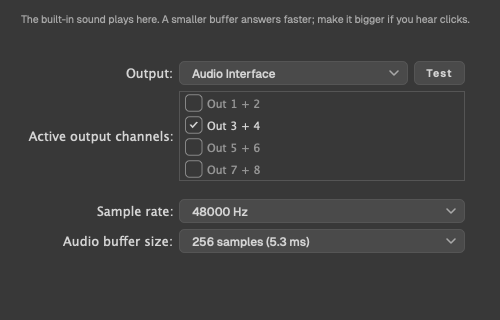
In the app, View > Audio Output… picks where the built-in sound plays. It's also in the TranceTools menu, on the speaker button's right-click, and under Built-in sound in the launch screen's Hearing it on menu. You can open it while the built-in sound is off.
Choose the device, the output pair, the sample rate and the buffer size. Your choice is remembered for next time; if that device isn't there, TranceTools uses your Mac's default. Until you choose, it simply follows the Mac's default output.
If the device you're using is unplugged, TranceTools moves to the default output and says Audio output changed to… in the status bar. Nothing is left hanging. The speaker's tooltip always names the output in use.
The plugin has no Audio Output setting: it plays through your DAW.
The Vital preset pack
TranceTools comes with 32 presets for Vital, the free wavetable synth: one made for each built-in sound, plus a gated supersaw and three FX. Use them to play your dragged-in parts with sounds close to what you heard in TranceTools.
| Category | Presets |
|---|---|
| Lead | Anthem Supersaw, Pluck Lead, Soft Square, Screamer |
| Chords | Supersaw, Stab, Trance Piano, Organ, Gated Supersaw |
| Pad | Warm, Strings, Choir, Glass |
| Bass | Rolling Offbeat, Sub, Reese, Pluck |
| Arp | Pluck, Bell, Saw, FM |
| Pluck | Classic, Marimba, Pizz, Harp |
| Acid | 303, Squelch, Rubber, Distorted |
| FX | White Noise Riser, Downlifter, Impact |
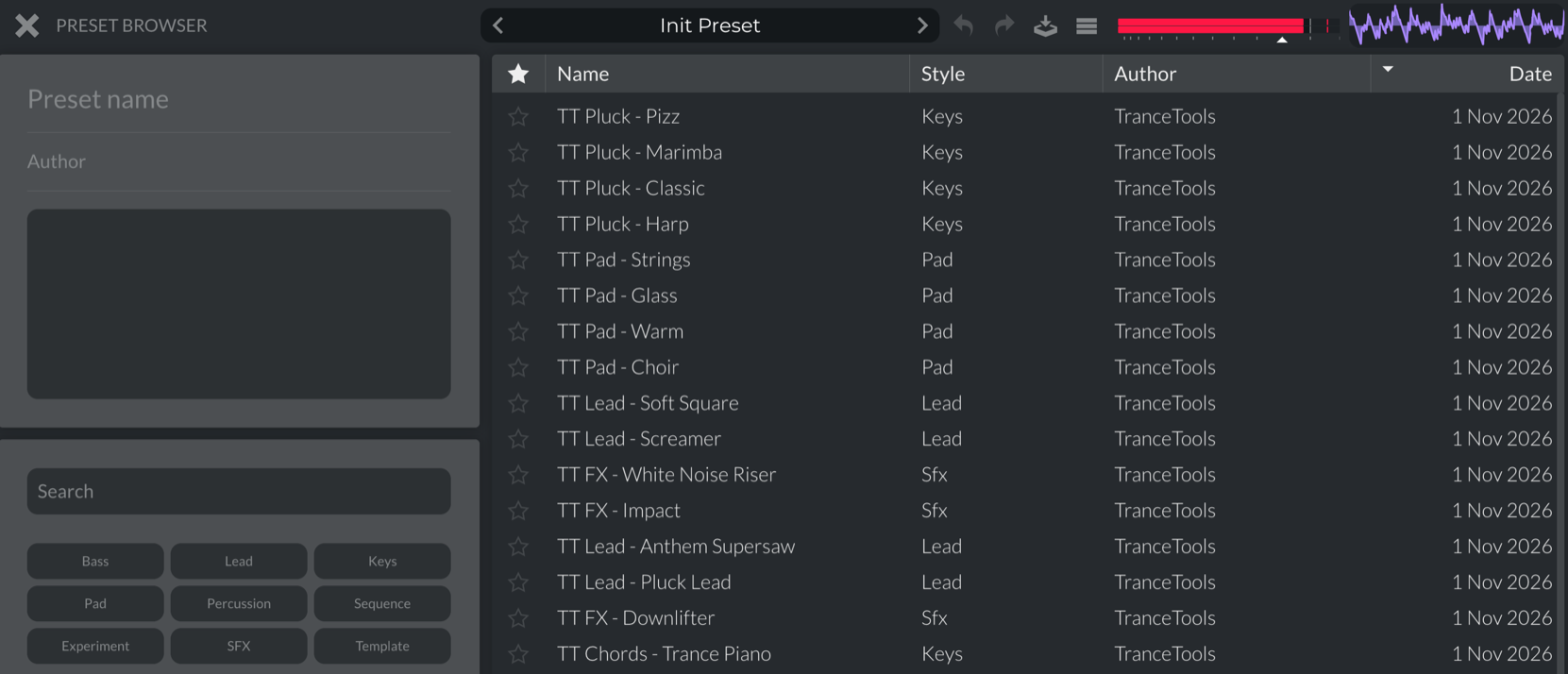
Each is named TT [Part] - [Sound], for example TT Pad - Glass. Every preset has the same four macros: Cutoff, Resonance, Width and Space (reverb and delay), each centred on the designed sound.
Installing them
- Install Vital and open it once.
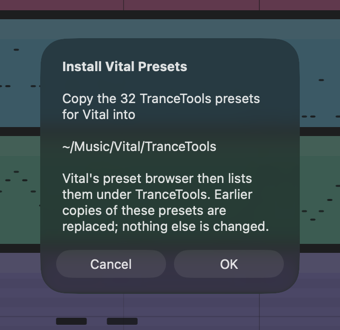
- In TranceTools, choose File > Install Vital Presets… (in the plugin, MENU > File).
- Click OK. TranceTools copies the presets into Vital's presets folder, under TranceTools.
- In Vital, open the preset browser and choose TranceTools. The presets are named by part and sound, such as TT Pad - Strings and TT Lead - Anthem Supersaw.
Nothing is installed until you click OK. Running it again replaces earlier copies of these presets and changes nothing else. If Vital isn't installed, it says so and writes nothing. The presets are also in the TranceTools disk image, in Extras/Vital Presets.