Plugin, app and DAW set-up
TranceTools is made to play the synths already in your DAW, a part on each track. It runs two ways, as a plugin inside your DAW or as an app beside it. Here's how to link your synths in each.
Play it on your own synths
Link each part to a track with the instrument you want, and TranceTools plays your sounds, in your mix. That's the main way to use it. The built-in sound is there for reference, when no DAW is set up.
| You're running | To play a part on your synth |
|---|---|
| The app, linked to Ableton Live or Bitwig Studio | Choose the track from the menu under the part's name in its lane. See Where each part plays. |
| The app, with any other DAW | Set a MIDI track's input to the TranceTools port and the part's channel, and monitor it. See Other DAWs. |
| The plugin | Route the part's MIDI channel from the plugin's track to your synth's track. See Using the plugin. |
Channels: Chords 1, Bass 2, Arp 3, Lead 4, Pluck 5, Pad 6, Acid 7, Drums 8 (10 in exported files) and FX 9. We test TranceTools in Ableton Live and Bitwig Studio; other DAWs that load VST3 or AU plugins work the same way.
Plugin or app?
Both have the same window and write the same ideas. Your licence, saved ideas and Simple/Pro choice are shared between them.
| Plugin (VST3 / AU) | App | |
|---|---|---|
| Runs | On a track in your DAW | On its own, beside any DAW (or none) |
| Timing | Plays with your DAW's transport; Play runs it while the DAW is stopped | Its own transport, at the DAW's tempo when linked |
| Your synths | MIDI out on channels 1–9, one per part | Plays your Bitwig or Live tracks directly; any DAW through the TranceTools MIDI port |
| Built-in sound | On the plugin's own audio output | On the output you choose in Audio Output |
| Saving | The idea saves with your DAW project | Reopens where you left off |
| Menus | Under the MENU button | The Mac menu bar |
| Only here | Notes played into the plugin play along through the Lead | Audio Output, DAW scripts, crash reports, updates |
The app installs the plugin into ~/Library/Audio/Plug-Ins the first time it opens. Help > Install Plugin (VST3 and AU) does it again, and Help > Show Plugins in Finder shows where it is.
Using the plugin
- Add TranceTools to an instrument track, as a VST3 or AU instrument.
- Turn on the speaker to hear the built-in sound on the plugin's output, or route its MIDI to your synths (see below).
- Press play in your DAW. TranceTools plays in time, from wherever the playhead is.
Each part comes out of the plugin as MIDI on its own channel: Chords 1, Bass 2, Arp 3, Lead 4, Pluck 5, Pad 6, Acid 7, Drums 8 and FX 9. The status bar reminds you. The filter sweeps and pump (CC 74 and CC 11) go out too. How you route a plugin's MIDI to other tracks depends on your DAW.
Each plugin instance keeps its own idea, window size and zoom in your project.
Ableton Live
The app links to Live 10, 11 and 12 (Intro, Standard and Suite) through a Remote Script, so each part plays the synth on its own Live track.
- The app installs the script into Live's User Library when it opens, if Live is installed. Help > Install Ableton Live Script does it again.
- Open TranceTools, then restart Live.
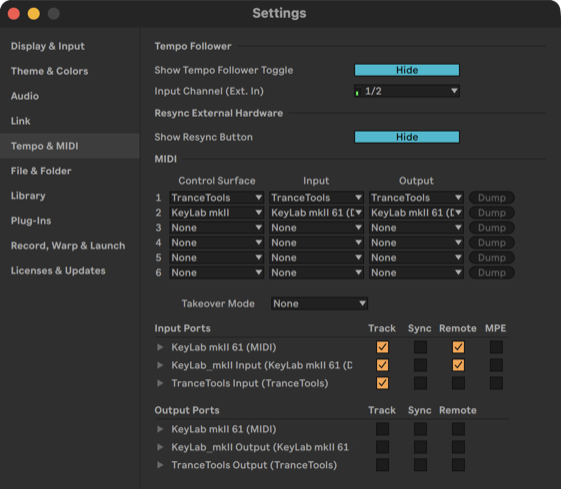
- In Live's Settings > Tempo & MIDI (Link, Tempo & MIDI in older versions), choose TranceTools as a Control Surface, and set its Input and Output to TranceTools.
- In the Input Ports list below, check that Track is on for the TranceTools input. If it's off, the status bar tells you.
The status bar then says Linked to Live, with your track count and tempo. While TranceTools previews, each part's Live track listens to TranceTools, with monitoring on; when the preview stops, every track goes back exactly as it was. If Live renames a track (when you load an instrument on it), the part stays on that track.
You can also load the plugin on a Live track and drag parts from its lanes. To hear the parts on your own Live synths as they play, the linked app above is the simplest way.
Bitwig Studio
The app links to Bitwig through a controller script.
- The app installs the script into ~/Documents/Bitwig Studio/Controller Scripts/TranceTools when it opens. Help > Install Bitwig Script does it again.
- Open TranceTools, then Bitwig. Bitwig finds the controller by itself.
- If it doesn't, go to Settings > Controllers > Add Controller > TranceTools, and set both ports to TranceTools.
The status bar then says Linked to Bitwig. The drums preview on a reference track the script adds, TranceTools Drums, with Bitwig's 909 kit; see Drums.
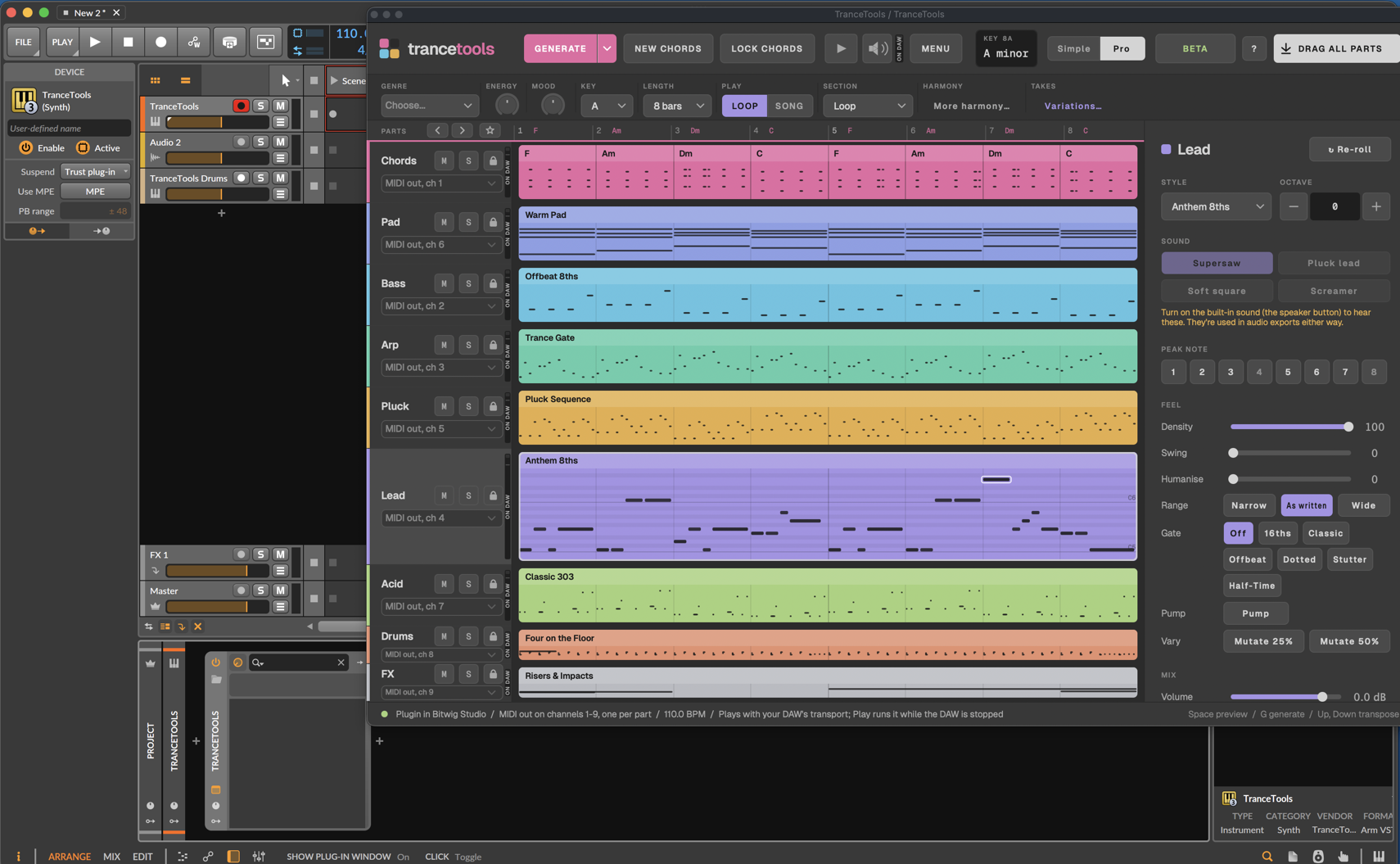
You can also load the plugin on an instrument track.
Where each part plays
Under each part's name in its lane, in Simple and Pro, is where it plays. What it shows depends on how you're running TranceTools:
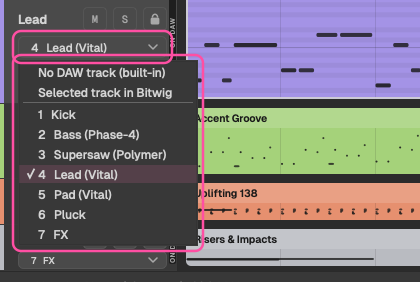
- The app, linked to Bitwig or Live: a menu. Choose:
- No DAW track (built-in): the part plays on the built-in sound, for reference. This choice sticks.
- Selected track in Bitwig (or Live): follows whichever track you click in your DAW.
- Bitwig drum kit (reference), for the drums in Bitwig.
- Any instrument track in your project (in Live, not groups).
- The app, with no DAW linked: it shows, for example, MIDI ch 4 (any DAW). In any DAW, set a MIDI track's input to TranceTools, that channel, and monitor it. See Other DAWs.
- The plugin: it shows, for example, MIDI out, ch 4. Route that channel from the plugin's track to your synth.
Hover over it for a reminder of what to do. The help overlay (?) labels it too.
Logic Pro and FL Studio
TranceTools is a standard VST3 and AU plugin. We test it in Ableton Live and Bitwig Studio; other DAWs that load VST3 or AU plugins add it the same way, as an instrument:
- Logic Pro: add a Software Instrument track and choose AU Instruments > TranceTools.
- FL Studio: add TranceTools as a VST3 instrument from the plugin browser.
Turn on the speaker to hear the built-in sound. To get parts into your project, drag them from the lanes; see Dragging and exporting.
Logic doesn't pass MIDI out from AU instruments to other tracks, so in Logic, drag the parts you want onto your own instrument tracks rather than routing the plugin's MIDI.
If something doesn't work in your DAW, please tell us.
GarageBand
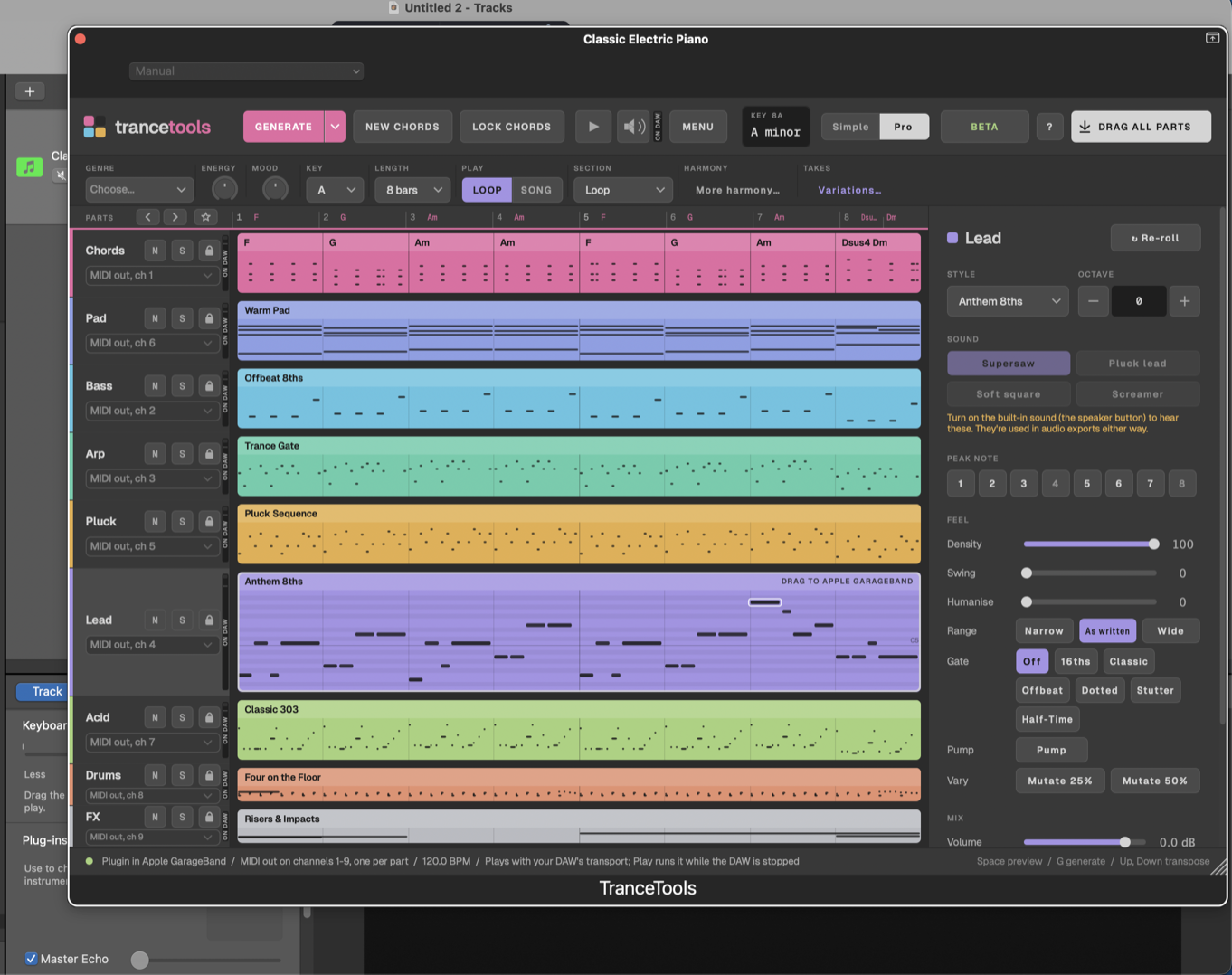
Add a Software Instrument track and choose Plug-ins > AU Instruments > TranceTools. TranceTools loads without the "Lower Security Settings" prompt, plays the built-in sound, and sees the same licence and saved ideas as the app. To get parts into your project, drag them from the lanes.
Other DAWs
Any DAW that loads VST3 or AU plugins can run TranceTools as a plugin. The app can also play any DAW's synths without a script:
- Create a MIDI track for each part you want to hear.
- Set each track's MIDI input to the TranceTools port and the part's channel: Chords 1, Bass 2, Arp 3, Lead 4, Pluck 5, Pad 6, Acid 7, Drums 8, FX 9.
- Turn on monitoring for those tracks.
- With no DAW linked, click the tempo in the readout to match your project's tempo.
Dragging works in any DAW that accepts dropped MIDI files.
Setting up later
In the app, the readout's CONNECT cell, the speaker button's menu and the launch screen's Hearing it on menu all have Set Up a DAW…, which walks you through it. The Help menu has the script and plugin installers, and items to show each in the Finder.