Chords, harmony and melody
The harmony controls, how to change a single chord, how to voice the chords, and how to bring in your own chords or melody from MIDI.
Key and scale
Key is in the top bar in both modes. Changing it moves the current idea to the new key without rewriting it. Scale is in More harmony (Pro); changing it writes new harmony.
Scales: Minor, Harmonic Minor, Phrygian, Major, Dorian, Mixolydian and Lydian. Most trance lives in minor; Psy leans Phrygian, and Hard Trance harmonic minor.
Chords and keys are spelled with flats in flat keys (B♭ minor, not A♯ minor).
Camelot codes
The readout shows the key's Camelot code, for example KEY 8A for A minor, for DJ-friendly key matching. Modes use their root's minor or major code. More in Mixing trance in key.
Transpose
Press ↑ or ↓ to move the whole idea up or down a semitone, or use Transpose in More harmony. Drum and FX notes don't move.
More harmony Pro only
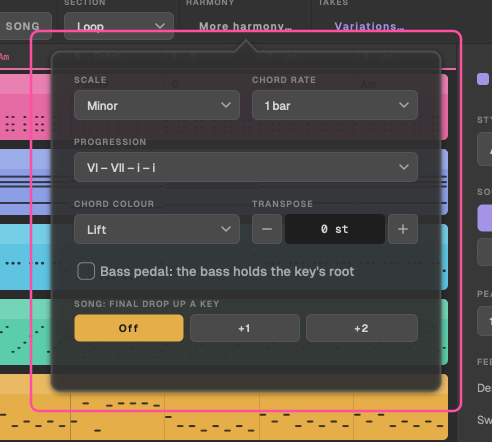
The More harmony pop-over in Pro holds:
- Scale: see above.
- Chord rate: each chord lasts 1 bar or 2 bars.
- Progression: Generated for a new progression each time, or a classic trance progression for the scale, shown in Roman numerals (for example i – VI – III – VII).
- Chord colour: see below.
- Bass pedal: the bass holds the key's root while the chords move over it, giving slash chords.
- Final drop's lift: see Last drop up a key.
- Transpose.
Chord colour
Chord colour sets the chord type for the Chords and Pad parts:
- Triads, 7ths, Add9, Sus2 or Sus4 on every chord.
- Lift: plain triads, with an added 9th only on the chords that lift the progression (VI and iv in a minor key, IV and vi in a major key). Uplifting uses it.
Each genre has its own starting colour, and a euphoric Mood leans to add9.
Changing a chord
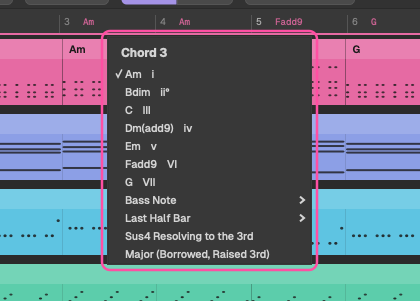
Click a chord on the ruler for a menu:
- Another chord from the key, listed with its name and Roman numeral. Every repeat of that chord in the loop changes too.
- Bass Note: the root, or another note under the chord (an inversion or slash chord, like F/A).
- Last Half Bar: a second chord for the last half of the bar.
- Sus4 Resolving to the 3rd: a sus4 for the first half, resolving half way.
- Major (Borrowed, Raised 3rd): plays a minor chord as major, like the classic major V in a minor key.
Hover over a chord to see what it does in the key and how many notes it shares with the chord before it.
Chord voicing Pro only
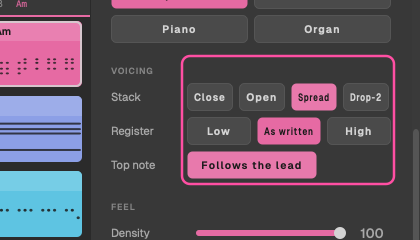
Select the Chords part to see the inspector's Voicing section. Voicing works like Feel: it changes how the chords are heard without re-rolling them. Each chord keeps its notes and only moves them by octaves.
Stack
- Close: the chord's notes as near together as they go.
- Open: every other note up an octave, for a wider, airier chord.
- Spread: everything above the lowest note up an octave, the widest.
- Drop-2: the second note from the top down an octave, the classic keys voicing.
Register
Low, As written or High turns each chord an inversion lower or higher. (Octave moves the whole part.)
Top note follows the lead
Turns each chord so its top note sits at or just below the lead note over it, so the chords move with the melody.
A pad's held bass note stays put. The voicing is saved with the idea, can be undone and carries on to later ideas.
How the parts stay in harmony
You don't need to check for clashes: TranceTools does it as it writes.
- Melody notes on a beat, or held for an 8th or longer, are chord tones or lean on the chord and resolve by step. Quick notes between them stay in the scale.
- A note held into a chord it doesn't belong to stops at the change.
- Chord voicings avoid semitone clusters.
- No part sits a semitone or a minor 9th from what another part is playing.
Importing chords from MIDI
Drop a MIDI file on the window, or choose File > Import Chords from MIDI File…. TranceTools finds the key, length and chords, then writes new parts over them. Drums on channel 10 are ignored.
Use it to write trance parts over a progression you already have, from your DAW or from the free Chord Lab.
Continue a melody
Give TranceTools a one- or two-bar melody, and it becomes the lead: repeated as a sequence that follows the chords and resolves at the end.
From a MIDI file
Drop the file on the Lead lane, or choose Idea > Continue Melody from MIDI File….
From a MIDI keyboard
- Choose your keyboard in Idea > MIDI Keyboard. What you play sounds through the Lead's sound (its DAW track, or the built-in sound).
- Play your phrase.
- Choose Idea > Continue Melody from What I Played. The last phrase you played, up to two bars, quantised to 16ths, becomes the lead.
In the plugin Plugin only
Play notes into the plugin from your DAW: they play along through the Lead. Then choose MENU > Idea > Continue Melody from What I Played (MIDI into the plugin).