The window
One clip at a time: its chords along the top, its notes in the middle, and the dial and its controls along the bottom.
At a glance
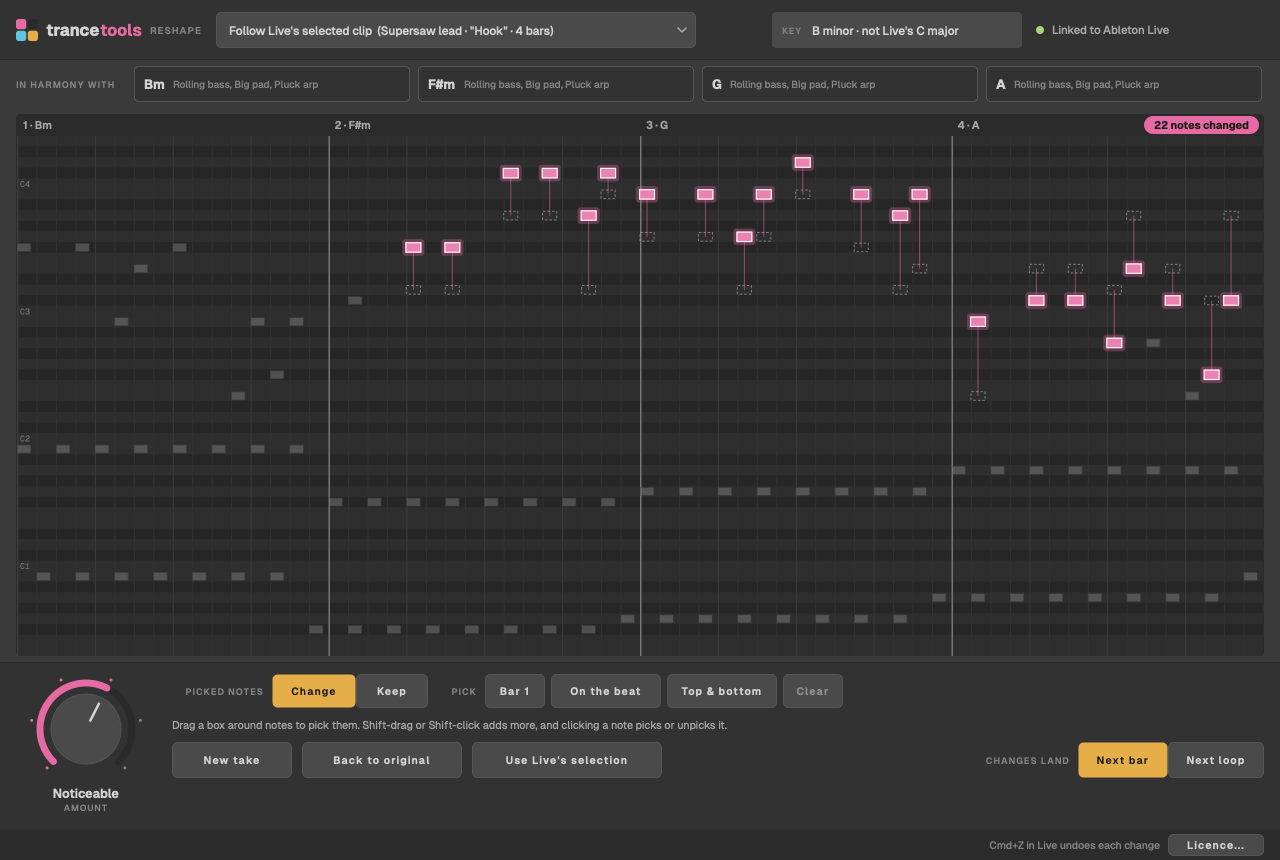
Top to bottom: the top bar, In harmony with, the note view, the dial and controls, and the status line.
The top bar
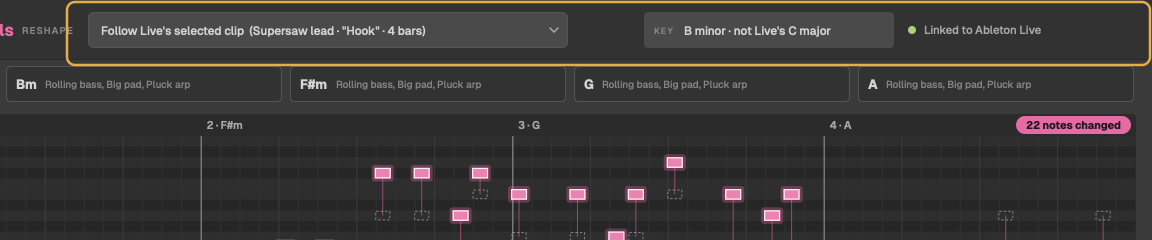
| Part | What it shows |
|---|---|
| Clip menu | Follow Live's selected clip, with the clip it's following in brackets, then the MIDI clips in the scene selected in Live, each with its track, name and length, for example Lead · "Hook" · 4 bars. Drum tracks aren't listed. See Choosing a clip. |
| Key | The key Reshape stays in, and where it came from: from the clip, from Live, from the notes, or not Live's when Live's scale doesn't fit the notes. See Harmony and key. |
| Link | A green dot and Linked to Ableton Live with your set's tempo, or a red dot and Not linked to Live. |
In harmony with
A strip of boxes, one per bar, with the chord Reshape follows there and the clips it hears it in. Up to eight bars are shown; a longer clip ends with + and the number of bars left. A bar with nothing to follow says nothing to follow.

The note view
The clip's notes, like a piano roll. Along the top, each bar's number and its chord, such as 3 · D. On the left, the C of each octave. Long stretches of pitches the clip doesn't use fold into a thin dotted band, so a line and its low notes both get room.
| You see | It means |
|---|---|
| Grey notes | Notes as they are |
| Pink notes, with a glow | Changed notes. While a change is on its way to Live they're a little paler |
| A dashed outline with a pink line to a note | Where a changed note was, and where it went |
| A white outline | A note you've picked |
| Cyan notes with a padlock | Picked notes you're keeping |
| An amber line | The playhead, while the clip plays |
| A dashed pink line | Where the change will be heard in full |
| A pink pill at the top right | How many notes changed: changed, changing on the way to Live, or changed · not in Live without a licence |
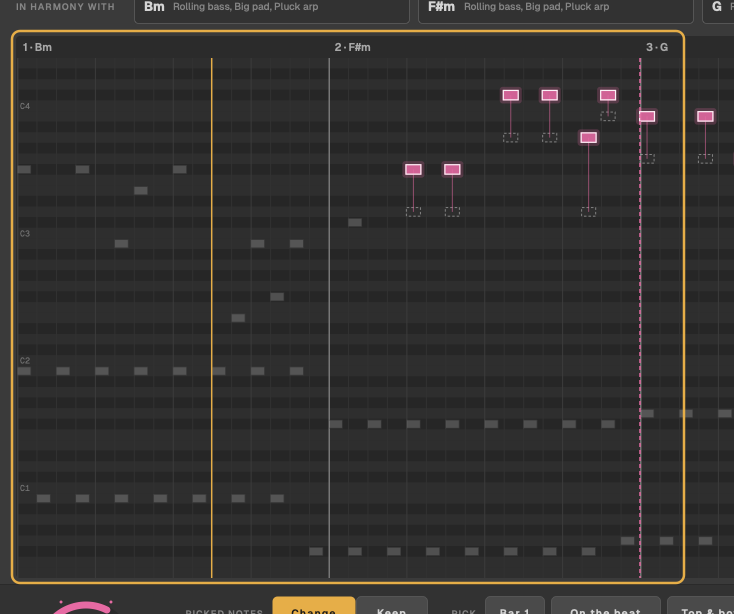
To zoom across time, hold Cmd and scroll, or pinch on a trackpad. When zoomed in, scroll sideways (or Shift-scroll) to move along the clip. Choosing another clip zooms back out.
The dial and controls

| Control | What it does |
|---|---|
| Amount | The dial: Original, Subtle, Gentle, Noticeable, Bold, Rewrite. See The dial and takes. |
| Picked notes: Change / Keep | Whether the dial changes only the picked notes, or keeps them and changes the rest |
| Pick: Bar 1, On the beat, Top & bottom, Clear | Pick notes for you, or unpick everything. See Picking notes. |
| New take | Another version at the same step |
| Back to original | Puts the clip's own notes back |
| Use Live's selection | Picks the notes selected in Live's note editor |
| Changes land: Next bar / Next loop | When a change is heard. See Changes in Live. |
The line under Picked notes reminds you how to pick: drag a box, Shift to add, click a note to pick or unpick it. The controls are greyed out until a clip with notes is showing.