Getting started
Link Reshape to Ableton Live, choose a clip and turn the dial. Short steps, one screen at a time.
What you need
A Mac running macOS 11 or later (Apple silicon or Intel) with Ableton Live 12 or later, and a MIDI clip in Session View with a lead, a bassline or an arp in it. You don't need Max for Live.
Reshape changes the notes in your clip, in Live, while it plays. It stays in your key and fits the chords in the other clips, and Cmd+Z in Live undoes each change.
Install the app and the Live script
Open the download and drag TranceTools Reshape into Applications. Then open it.
Reshape talks to Live through a Live script (a Control Surface). Until it's linked, the window says Waiting for Ableton Live with the steps to take. Click Install the Live script. It goes into your Live User Library, in Remote Scripts/TranceToolsReshape.
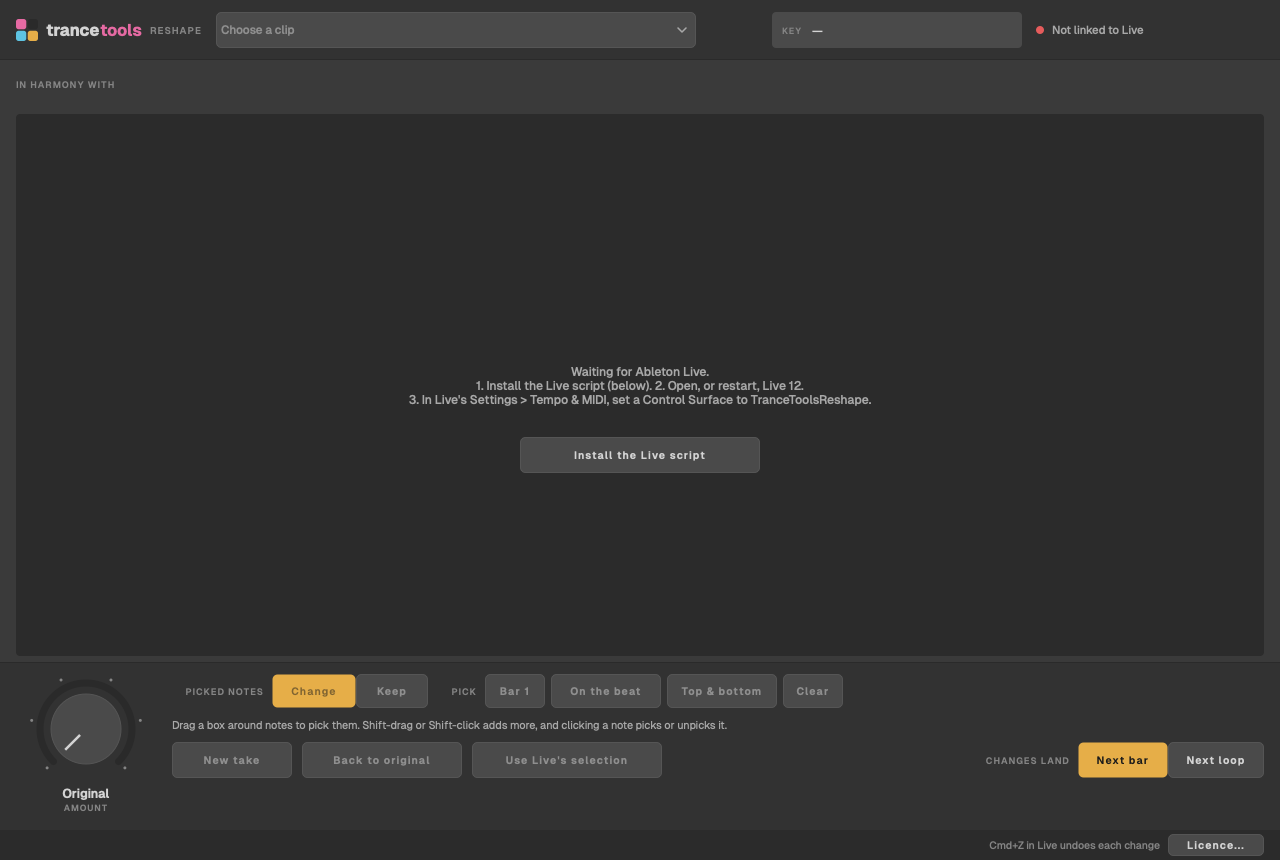
Then open Ableton Live 12, or restart it if it was already open. Live only loads its scripts when it starts.
Link it to Live
In Live, open Live > Settings (Cmd+,) and go to Tempo & MIDI (Link, Tempo & MIDI in earlier versions of Live 12). In an empty Control Surface slot, choose TranceToolsReshape, with Input and Output both set to None.
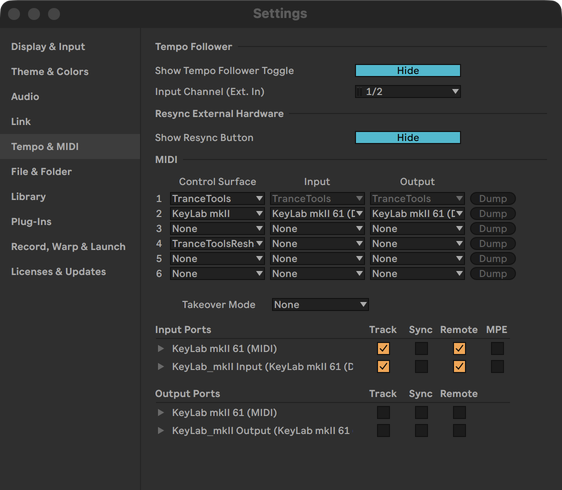
Back in Reshape, the dot at the top right turns green and says Linked to Ableton Live, with your set's tempo.
Choose a clip
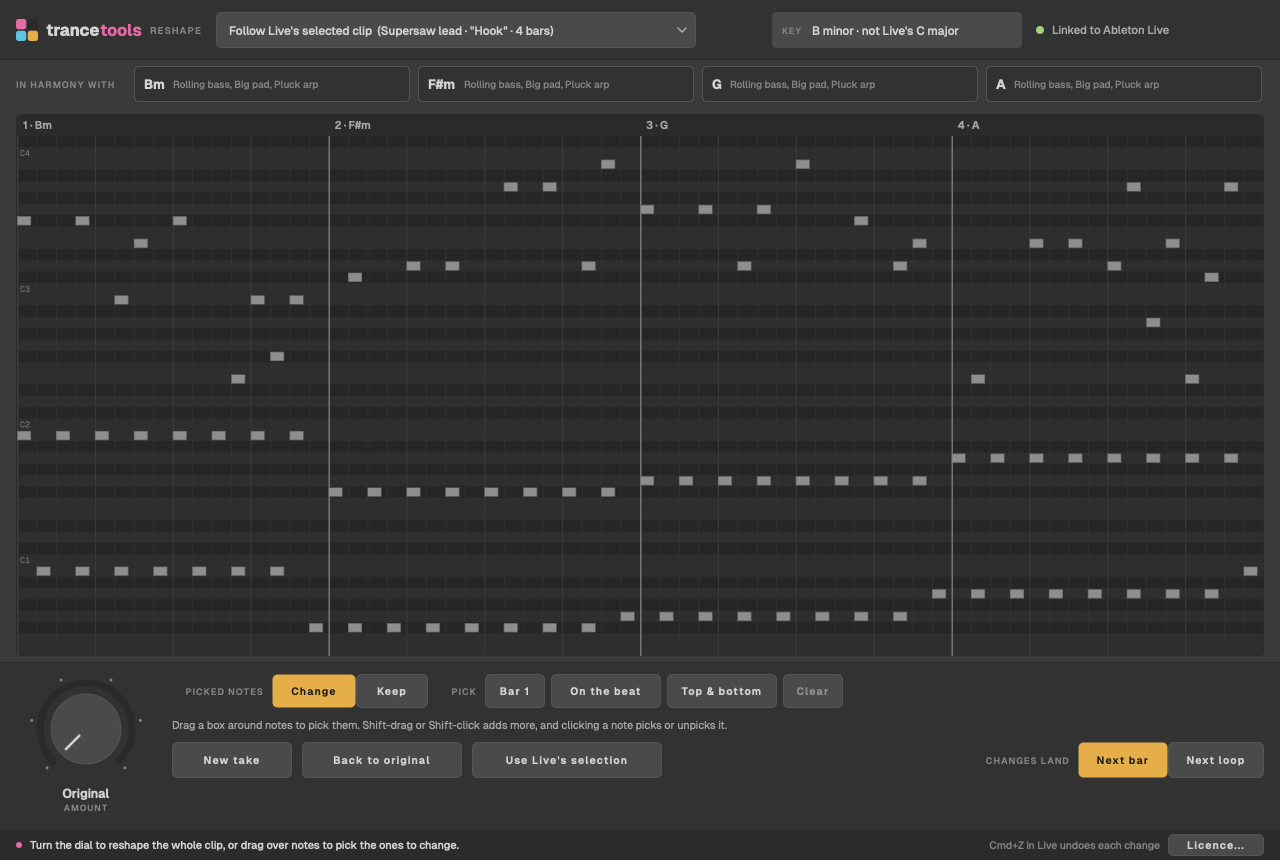
Click a MIDI clip in Live's Session View, such as a lead, an arp or a bass. Reshape follows it and shows its notes, its key, and the chords it hears in the other clips in the same scene. Or choose a clip from the menu at the top.
Turn the dial
Drag the Amount dial up, scroll over it, or press the arrow keys. While you turn it, Reshape shows what would change. Let go, and the change goes to Live, landing from the next bar. Changed notes are pink, each with a line back to where it was.
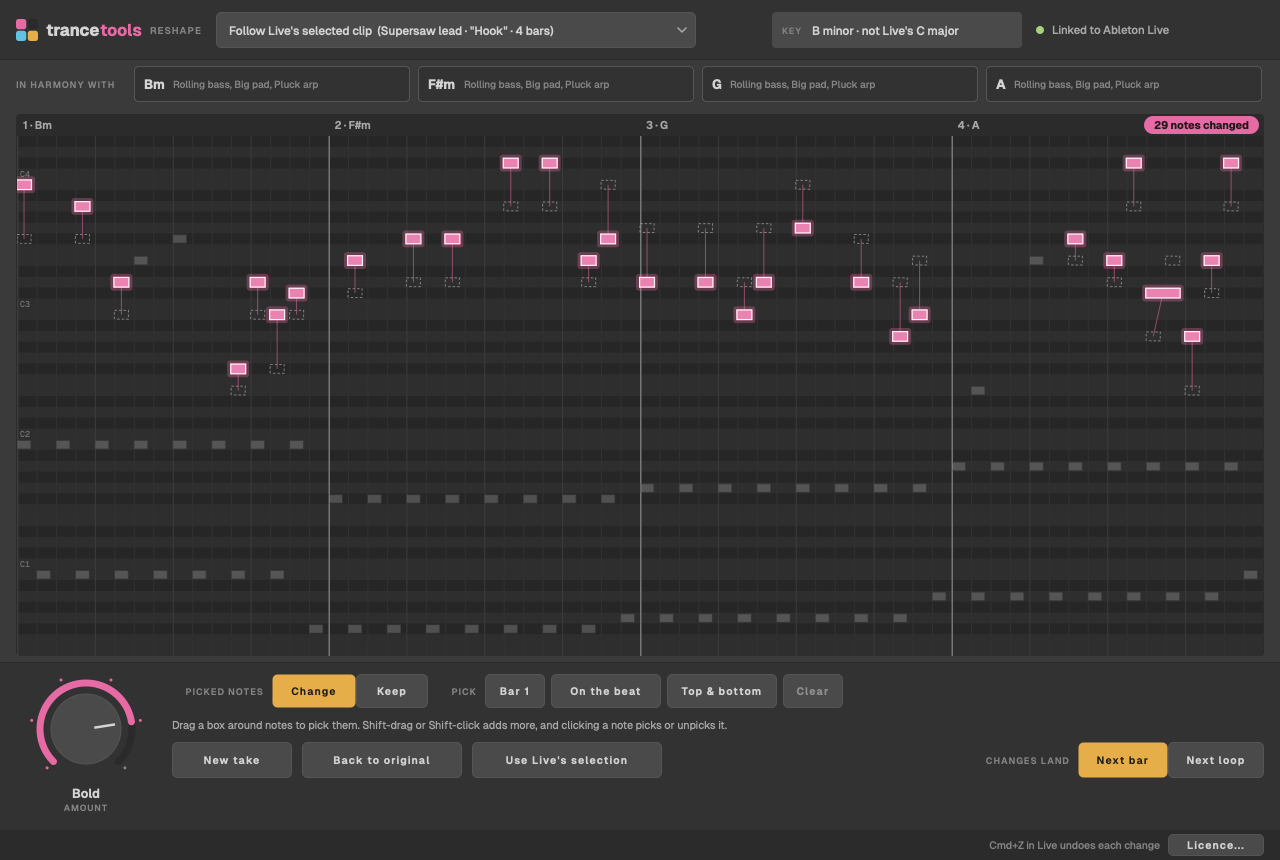
Not quite it? New take gives another version at the same step. Back to original puts the clip's own notes back, and Cmd+Z in Live undoes each change.
Without a licence, you can do all of this in Reshape's window, but the changes stay there: a licence sends them to Live. See Licence and files.
Where next
- The dial and takes: what each step changes, and for leads, basses and arps.
- Picking notes: change part of a clip, or keep part of it.
- Changes in Live: when they land, and undoing them.
- Harmony and key: what Reshape follows.