The dial and takes
One dial, six steps. Reshape hears your clip as phrases and changes more of them as you turn it up, staying in key and in harmony.
Choosing a clip
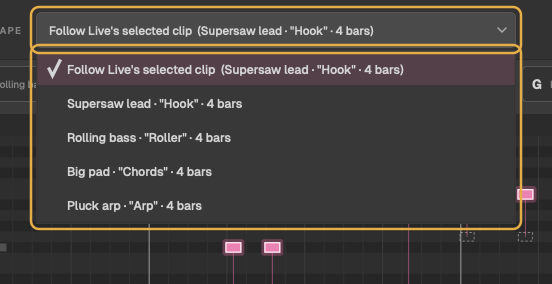
With Follow Live's selected clip chosen at the top, Reshape works on whichever clip you click in Live. Or choose a clip from the menu yourself, and Reshape stays on it whatever you click.
The menu lists the MIDI clips in the scene selected in Live, plus the clip open in Live's note editor. Tracks with drum-like names (drum, kick, hat, perc, clap, snare, ride, cymbal, tom, fx, riser) or a Drum Rack aren't listed: Reshape is for melodic lines.
The six steps
Reshape hears your clip as phrases, each with a part to play: a statement, an answer, a development and an ending. Each step of the dial changes more of them:
| Step | What changes |
|---|---|
| Original | Nothing: the clip's own notes |
| Subtle | The phrase endings |
| Gentle | The answers and the endings |
| Noticeable | Everything but the opening statement |
| Bold | Everything, with the motif turned upside down or moved |
| Rewrite | A whole new line, from a fresh motif |
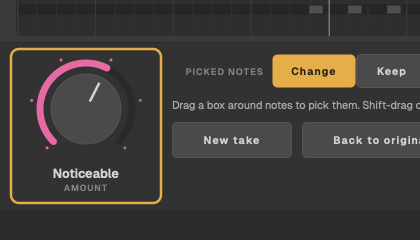
From Noticeable up, a lead can also gain or lose a note, on the grid the clip already uses. A changed phrase comes back changed the same way, so a hook still sounds like a hook. Velocities are never touched.
Turning the dial
- Drag up or right for more, down or left for less.
- Scroll over it, one step at a time.
- Click it, then use the arrow keys: up or right for more, down or left for less.
While you turn it, the notes show the step you're on, and the status line says, for example, Bold · 29 notes would change · let go of the dial to send it to Live. When you let go (or stop scrolling or pressing keys for a moment), the change goes to Live.
New take
New take gives you another version at the same step, keeping any notes you've chosen to keep. Takes are numbered: the status line says, for example, Bold · take 3 · 29 notes changed. If the dial is at Original, New take starts at Gentle.
Nothing is left to chance: the same clip, step and take always give the same notes, so you can go back to a take you liked.

Back to original
Back to original puts the clip's own notes back, as they were when Reshape first read the clip, and sets the dial to Original. It goes into Live the same way as any change, and the status line says Original: the clip's own notes.
Leads, basses and arps
Reshape works out whether a clip is a lead, a bass or an arp from its track's name and its notes, and treats each the way that part is written:
- Leads get a new line that keeps the original's shape: chord notes on the beat, phrase endings that land, leaps no wider than a sixth (and a step back after a wide one), and passing notes by step.
- Basses stay on the chord's root (and fifth) on the beat, and keep their groove.
- Arps keep their rhythm and pattern. Every note stays a chord note, and the pattern moves through the chord.
In a clip with layers under its melody, like root bounces or held notes, the layers stay as they are and only the line on top changes.