Picking notes
Want only the last bar changed, or the hook kept? Pick notes first, then tell the dial what to do with them.
How to pick
- Drag a box around notes to pick them. Shift-drag adds more.
- Click a note to pick or unpick it; Shift-click adds it.
- Click a bar's number to pick every note in that bar; Shift-click adds the bar.
- Click an empty space to unpick everything.
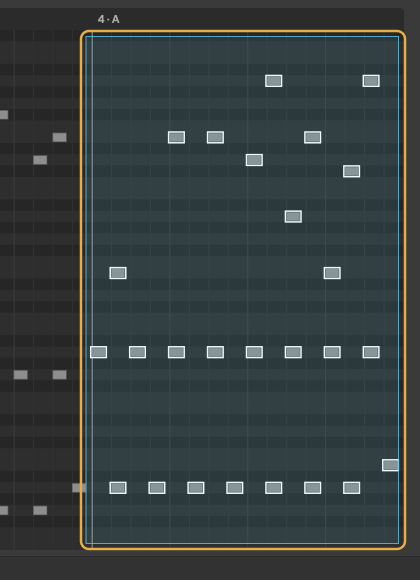
Use Live's selection
Select notes in Live's own note editor, then click Use Live's selection. The status line says, for example, Picked 6 notes from Live. Open the clip in Live's note editor first; if it isn't open there, Reshape says Open this clip in Live's note editor first, then pick notes there.
Change or Keep
Under Picked notes, choose what the dial does with them:
- Change (the default): the dial changes only the notes you've picked. With nothing picked, it changes the whole clip.
- Keep: the picked notes stay as they are, shown in cyan with a padlock, and the dial changes the rest, writing around them.
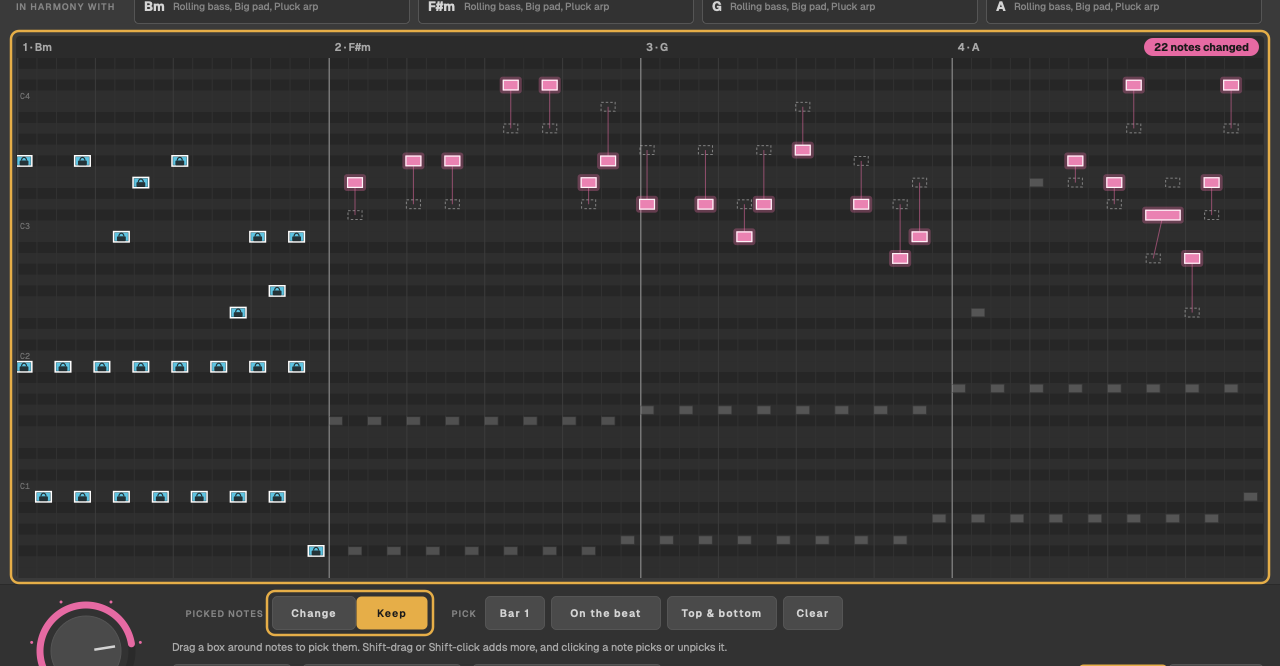
Inside the picked notes, the dial still sets how many change: a few at Subtle, nearly all at Rewrite. The status line says how many you picked, for example Noticeable · take 1 · 9 notes changed (only 12 picked) or (keeping 8 picked).
When picks are cleared
If the clip is changed in Live (you add, move or delete notes there), the notes your picks pointed to may have moved, so Reshape clears them and says The clip was changed in Live, so its picks were cleared. Pick again. Choosing another clip clears them too.