Writing to Live
One click writes the whole arrangement into Live as normal clips, automation and locators. One Cmd+Z in Live takes it all back out.
Write to Live will
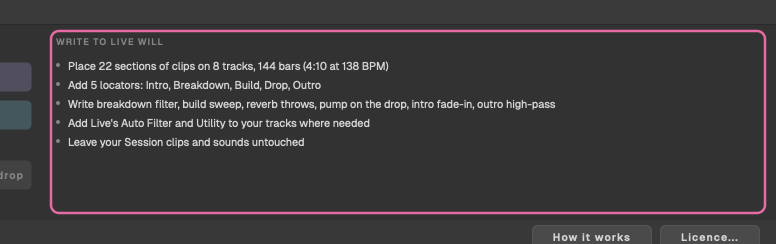
Before you write, the list at the bottom right says what will happen, for example:
- Place 22 sections of clips on 8 tracks, 144 bars (4:10 at 138 BPM)
- Add 5 locators: Intro, Breakdown, Build, Drop, Outro
- Write breakdown filter, build sweep, reverb throws, pump on the drop, intro fade-in, outro high-pass
- Add Live's Auto Filter and Utility to your tracks where needed
- Leave your Session clips and sounds untouched
With extras switched on, a line such as Add snare roll, crash on the drop on Arrange's own tracks joins them.
Writing
Click Write to Live. If it's greyed out, hover over it to see why: Link to Ableton Live first, Nothing to write yet: put your loop in Live's Session View first, a clip on each track., or Every track is switched off in every section. Click some cells in the grid to switch them on.
Without a licence, the licence card opens and says Activate to write to Live. See Licence and files.
Replacing an earlier arrangement
If your tracks already have clips in the Arrangement, Arrange asks first:
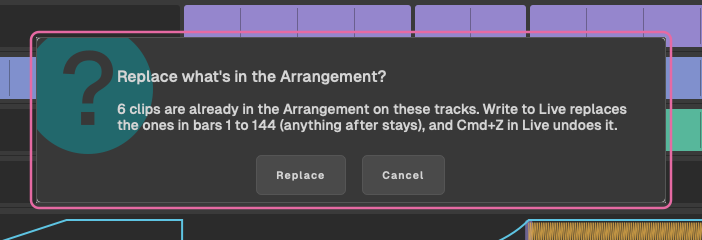
It says how many clips are there, and that Write to Live replaces the ones from bar 1 to the end of the song, for example bars 1 to 144 for a 144-bar song. Cmd+Z in Live undoes the write. Click Replace to go on, or Cancel.
While it writes
A full track takes a few seconds. The footer shows a progress bar and what's happening: Adding Arrange's devices, Writing each track, Adding the extras, then each Locator. Keep Live open while it works.

Click Stop to stop part-way: the footer says Stopped. Cmd+Z in Live removes what was written. When it's finished, it says, for example, Done: 334 clips on 8 tracks, 5 locators. Cmd+Z in Live undoes it.
What lands in Live
- Clips: copies of each track's Session clip, back to back through every section it plays in, from bar 1.
- Automation: the moves, as automation lanes on your tracks, on the devices Arrange added and on send A.
- Locators: one at the start of each section, named after it. A locator already at that spot is renamed rather than doubled.
- Extras: on Arrange's own tracks, at the end of your set.
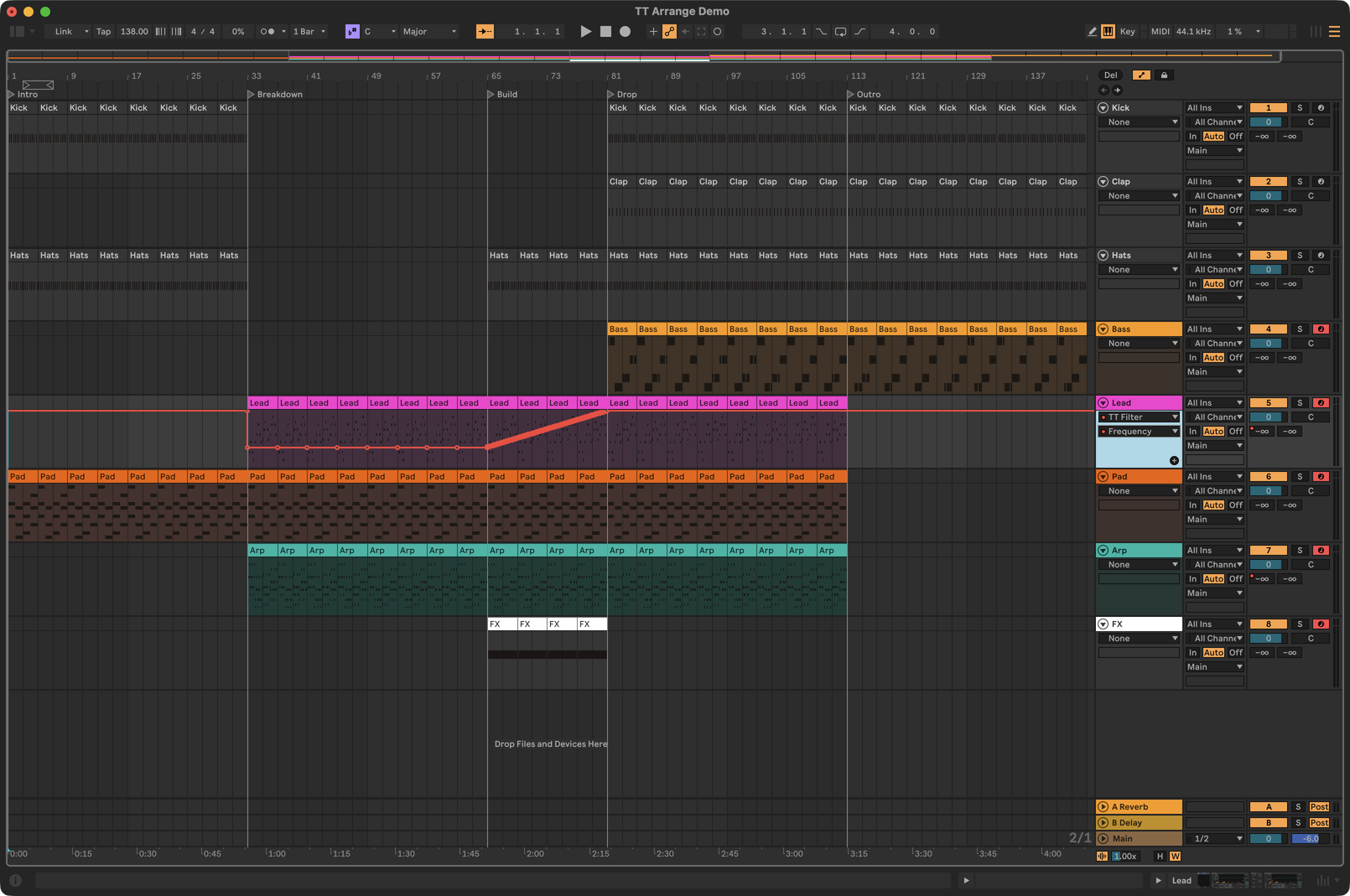
Your Session clips, their sounds and their own envelopes are left as they were. Live's playhead goes back to the start.
Undo, and writing again
Press Cmd+Z in Live. The first Cmd+Z removes the whole arrangement: its clips, automation and locators. A second Cmd+Z removes what Arrange added to your tracks: TT Filter, TT Gain, TT High-pass, and Arrange's own tracks.
Write as often as you like. Each write replaces the clips in the song's bars on the tracks it uses, and reuses Arrange's devices and tracks rather than adding more.
Hearing it
Switch to Arrangement View and press Play.
- Hearing your loop instead? Session clips that are still playing take over from the Arrangement on their tracks. Stop them, or click Live's orange Back to Arrangement button.
- Hearing nothing? Open Live > Settings > Audio and choose an Audio Output Device. If Live's status bar says the audio engine is off, click that message or press Cmd+Option+Shift+E.