Movement and extras
A loop copied end to end isn't a track. Arrange writes the movement trance producers add by hand, and can add risers, sweeps, rolls and crashes on tracks of its own.
The six moves
All six start on. Click a button under Movement to leave one out; the movement lane and the summary change to match.
| Move | What it writes | On which tracks |
|---|---|---|
| Breakdown filter | A low-pass filter closes to about 230 Hz in each breakdown. | Melodic tracks: Lead, Pad, Arp, Pluck, Chords, Acid, Vocal, Atmos and Other |
| Build sweep | The filter opens across each build, from about 230 Hz to fully open by the drop. | Melodic tracks |
| Reverb throws | Send A goes up on the last beat before each drop. | Lead, Vocal, Pluck and Arp |
| Pump on the drop | The volume dips by about 8 dB on every beat of each drop, back up by the off-beat. | Everything but Kick, Clap, Hats, Perc, Bass and FX |
| Intro fade-in | Melodic tracks fade in from silence over the first half of the intro. Drums and bass stay full, so DJs can mix in. | Everything but Kick, Clap, Hats, Perc, Bass and FX |
| Outro high-pass | A high-pass filter rises across each outro, from 20 Hz to about 1.2 kHz. | Everything but the Kick |
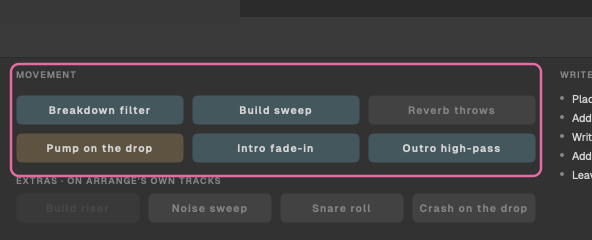
Reverb throws need a reverb. They turn up send A, so put a reverb on Live's return track A to hear them.
The devices Arrange adds
A Live script can't automate a third-party plug-in until you've set up its parameters in Live, so Arrange uses Live's own devices. The first time, it adds them at the end of each track's device chain, only where a move needs them:
| Device | Live device | Used by |
|---|---|---|
| TT Filter | Auto Filter (low-pass) | Breakdown filter and Build sweep |
| TT Gain | Utility | Pump on the drop and Intro fade-in |
| TT High-pass | Auto Filter (high-pass) | Outro high-pass |

The automation is real track automation in the Arrangement, so you can see and edit it in Live like any other. Write again and Arrange reuses its devices rather than adding more. Your Session clips stay as they were.
The four extras
Extras are sounds that aren't in your set. They start off; click one under Extras · on Arrange's own tracks to add it. Each goes on a track of Arrange's own, added at the end of your set the first time:
| Extra | What it adds | Track |
|---|---|---|
| Build riser | A TranceTools Build riser held across each build. Needs the free Build plug-in installed in Live; without it the button is greyed out. | TT Arrange Build |
| Noise sweep | A rising noise sweep over the end of each build, up to 32 bars, made at your tempo. | TT Arrange Sweep |
| Snare roll | A snare roll over the last 8 bars of each build, made at your tempo. | TT Arrange Roll |
| Crash on the drop | A crash on the first beat of each drop. | TT Arrange Crash |
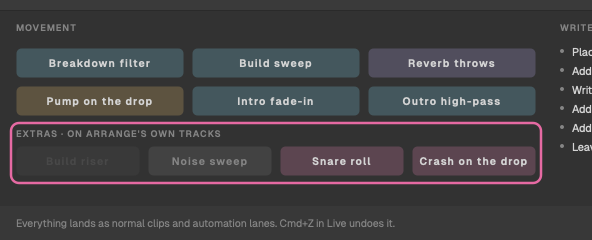
The sweep, roll and crash are Arrange's own sounds, made by the app (no sample packs). The first time you use one at a tempo, Arrange makes the file and keeps it in your Live User Library, in Samples/TranceTools Arrange, for example TT snare roll 8 bars 138 BPM.wav, then reuses it. They play unwarped, at the tempo they were made for.
Writing again replaces the extras' clips within the song; anything after its end stays.