Layouts
A layout is the song's sections and how long each one is. Start from a genre, borrow a real track's from Phrasemap, or shape your own.
Genre layouts
Seven layouts, one for each of TranceTools Spark's genres, with the section lengths producers of that style use. Each has an intro, breakdown, build, drop and outro, and the menu shows its length in bars.
| Layout | Sections (bars) | Length |
|---|---|---|
| Uplifting | Intro 32 · Breakdown 32 · Build 16 · Drop 32 · Outro 32 | 144 bars |
| Progressive | Intro 32 · Breakdown 32 · Build 32 · Drop 32 · Outro 32 | 160 bars |
| Psy | Intro 32 · Breakdown 16 · Build 16 · Drop 64 · Outro 32 | 160 bars |
| Tech | Intro 32 · Breakdown 16 · Build 16 · Drop 32 · Outro 32 | 128 bars |
| Vocal | Intro 32 · Breakdown 32 · Build 16 · Drop 32 · Outro 32 | 144 bars |
| Hard Trance | Intro 32 · Breakdown 16 · Build 8 · Drop 32 · Outro 32 | 120 bars |
| Classic 90s | Intro 32 · Breakdown 32 · Build 8 · Drop 32 · Outro 32 | 136 bars |
Choosing a genre says how many sections it has and the tempo it's usually played at, in the footer. Arrange doesn't change your set's tempo: the song plays at whatever tempo Live is set to, and the summary gives its length at that tempo, for example 144 bars (4:10 at 138 BPM).
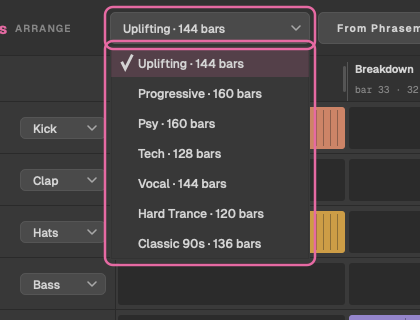
Choosing a layout starts the grid again from each track's role, so cells you've switched yourself go back to their defaults.
A reference track from Phrasemap
Phrasemap maps a real track's sections in your browser. Export its MIDI (with markers) or its Ableton Live set, then in Arrange click From Phrasemap… and choose the file. The file chooser opens in your Downloads folder.
- A MIDI file (.mid): each marker starts a section, named after the marker.
- An Ableton set (.als): each locator starts a section.
The footer says what it found, for example Layout from Track.mid: 9 sections, 176 bars, mapped at 138 BPM. The Layout menu then shows From and the file's name.
- A marker such as Drop (32) becomes a section called Drop.
- If the first marker comes after bar 1, the bars before it become an Intro.
- The last section runs to the end of the file. If nothing comes after it, its length is the number in brackets in its name, or 16 bars.
- Up to 64 sections.
If a file can't be used, the footer says why: No sections found. Use Phrasemap's MIDI with markers (.mid) or its Ableton Live set (.als)., That isn't a MIDI file Arrange can read., That isn't an Ableton Live set Arrange can read. or Too many sections (more than 64).
Your own layout
Any change to the sections makes the layout Your own.
Change where a section ends
Drag the handle at a section's right edge in the ruler. It moves in steps of 8 bars; hold Alt for 4 bars or Shift for 1. The next section gives or takes the bars, so the song stays the same length. Dragging the end of the last section makes the whole song longer or shorter, up to 1,024 bars. Every section keeps at least one step.
Rename, split, join or remove
Click a section in the ruler. The menu shows its name and length, then:
| Item | What it does |
|---|---|
| Call it | Intro, Groove, Breakdown, Build, Drop or Outro. The name decides what plays there and how it moves. |
| Split in two | Two sections of the same kind, split on the 8-bar line nearest the middle. |
| Join with the next | Adds the next section's bars to this one. |
| Remove | Takes the section out. The song gets shorter. |
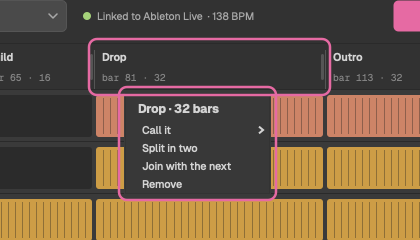
Splitting, joining or removing a section starts the grid again from the roles.
What a section's name does
Arrange reads each section's name to know what kind it is. A name that starts with Intro, Groove, Breakdown, Build, Drop or Outro is that kind, so Breakdown 2 is a breakdown. Any other name, such as a Phrasemap section called Main, counts as a drop.
The kind decides which tracks play there (see roles), how the movement shapes it, and where the extras go. A Groove is a full-beat section without the lead or pad: kick, clap, hats, percussion, bass, acid and arp.