Live setup
Arrange works with Ableton Live 12 or later on a Mac, through a small Live script. Here's everything Live needs, and how to take it out again.
The Live script
Arrange talks to Live through a Live script, a Control Surface, which runs inside Live. It only works with Ableton Live 12 or later; Live 11 and earlier aren't supported. You don't need Max for Live.
While Arrange isn't linked, click Install the Live script in its window. It copies the script into your Live User Library, in Music/Ableton/User Library/Remote Scripts/TranceToolsArrange, and says Installed the Live script. Restart Live, then choose TranceToolsArrange as a Control Surface. If the script is already there and current, it says The Live script is up to date.
After you update Arrange, the copy of the script in Live may be older than the app. When it is, an Update the Live script button appears at the bottom of the window, even while Arrange is linked. Click it, and it says Updated the Live script. Restart Live to use the new version.
Live loads its scripts only when it starts, so restart Live after installing or updating.
Choosing the Control Surface
In Live, open Live > Settings (Cmd+,) and go to Tempo & MIDI (Link, Tempo & MIDI in earlier versions of Live 12). In an empty Control Surface slot, choose TranceToolsArrange. Leave its Input and Output on None: Arrange doesn't use MIDI ports.
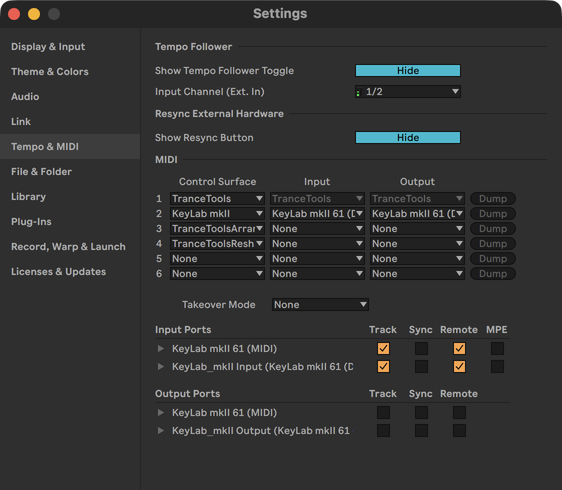
Arrange then says Linked to Ableton Live, with Live's version and tempo. It keeps the link while both are open, and finds Live again by itself if you restart it.
Using TranceTools Spark or Reshape too? Each has its own Control Surface. Set them in different slots and they all work at once.
Getting your set ready
- Your loop in one row of Session View, a clip on each track. See Tracks and roles.
- A reverb on return track A, for the reverb throws.
- TranceTools Build, for the Build riser extra: install the free Build plug-in and make sure Live has scanned it (Live > Settings > Plug-Ins).
- Room for the arrangement: Arrange writes from bar 1. Clips after the end of the song stay where they are.
Uninstalling
- In Live's Settings, set the Control Surface slot back to None.
- Delete TranceTools Arrange from Applications.
- In your Live User Library, delete the Remote Scripts/TranceToolsArrange folder, and Samples/TranceTools Arrange (the extras' sounds).
- To remove your licence and settings too, delete ~/Library/Application Support/TranceTools Arrange. Deactivate first if you want to free the Mac's seat.
Arrangements you've already written stay in your sets: they're normal Live clips and automation, and the TT devices are Live's own.