Install
Gate needs macOS 11 (Big Sur) or later, on Apple silicon or Intel.
- Download TranceTools Gate and open the .dmg file.
- Drag TranceTools Gate.vst3 onto the VST3 folder shortcut beside it.
- Drag TranceTools Gate.component onto the Components (AU) folder shortcut.
- Restart your DAW, or rescan its plug-ins. Gate is an audio effect, not an instrument.
You only need the format your DAW uses, but installing both does no harm. The shortcuts install Gate for everyone on the Mac (in /Library/Audio/Plug-Ins). To install it just for you, copy the files into the same folders in your home folder's Library instead (~/Library/Audio/Plug-Ins/VST3 and ~/Library/Audio/Plug-Ins/Components). The .dmg also has a How to install file with these steps.
To uninstall, delete the two files from those folders.
Put Gate after your synth
Put Gate on the same track as your synth (or pad, or vocal), after it in the chain. Gate chops the sound that comes into it, so on an empty track of its own it has nothing to gate. You can also put it on a group or bus to gate several tracks at once.
If your DAW is playing and nothing has come in for about 2 bars, the status bar says, in amber, No sound coming in: put Gate after your synth on the same track. It clears as soon as sound arrives.
The window
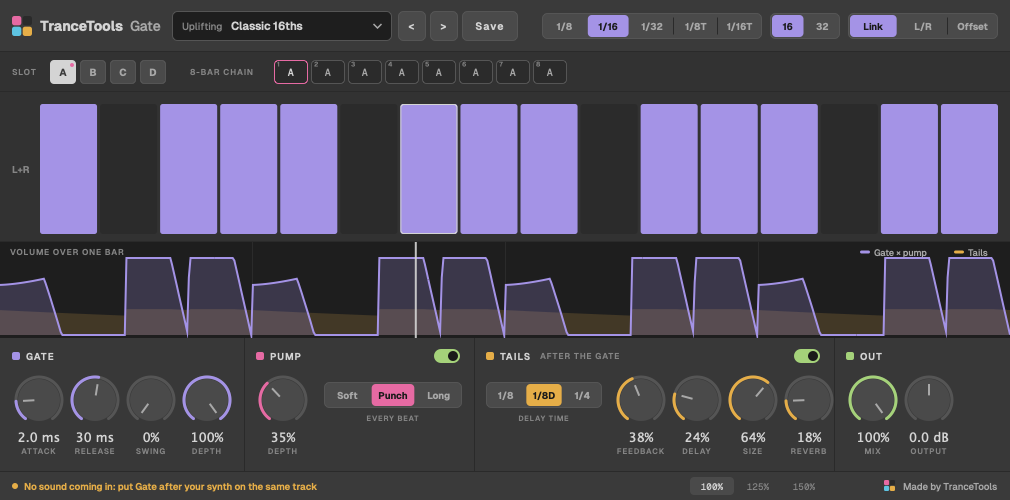
From top to bottom:
- The top bar: the pattern menu, previous and next, Save; then the step rate, 16 or 32 steps, and the stereo mode.
- Slots and the 8-bar chain: see below.
- The step grid: one row, or two in Left/Right mode.
- Volume over one bar: the curve Gate is applying, gate and pump together, with the tails in amber. A playhead runs across it while that slot plays.
- Gate, Pump, Tails and Out: the knobs.
- The status bar: where your DAW is, by name (for example Playing · locked to Ableton, bar 9.2, or Bitwig stopped · following its tempo, 135 BPM), the window size, and the Made by TranceTools link. If no sound is coming in while your DAW plays, it says so in amber (see Put Gate after your synth).
Choose 100%, 125% or 150% at the bottom to resize the window. Double-click any knob to reset it.
Patterns
Click the pattern name to open the library. The patterns are grouped into six styles:
| Style | Patterns |
|---|---|
| Uplifting | 8 |
| Progressive | 7 |
| Psy | 6 |
| Tech | 6 |
| Vocal | 6 |
| 90s Classic | 7 |
A pattern sets every knob and switch: the steps, the rate, swing, attack, release, depth, stereo, pump, tails and delay time, with mix back to 100% and output to 0 dB. Use < and > to step through them while your track plays.
Your own presets
Click Save (or Save preset… in the menu), name it, and Gate saves the settings and all four slots, chain included. Your presets are under User in the menu. Show presets folder opens Music/TranceTools Gate/Presets in your home folder.
Editing steps
- Click a step to switch it on or off.
- Drag up and down to set a step's level. Keep dragging across to draw levels over several steps.
- Shift-click (or right-click) a step to tie it to the step before. A tied step carries on with no gap, for longer notes.
Rate sets the step length: 1/8, 1/16, 1/32, or triplets (1/8T, 1/16T). 16 / 32 sets the number of steps.
There's no undo for step edits yet, so save a preset before big changes.
Gate knobs
- Attack and Release (1 to 200 ms): how quickly each step opens and closes. Short is sharp and choppy; long is soft and breathy. Gate never moves faster than 1 ms, so it doesn't click.
- Swing (up to 75%): pushes the off-beat steps late, for a rolling groove.
- Depth: how far the gate closes. 100% cuts to silence between steps; lower dips the sound instead.
The 8-bar chain
Gate has four slots, A, B, C and D. Each holds its own pattern. Every factory pattern fills them for you:
- A: the pattern;
- B: a fill into the next bar;
- C: a softer fill;
- D: the beats flipped.
The 8-bar chain picks a slot for each bar, and repeats every 8 bars. It starts as A on every bar.
- Click a slot to show and edit it in the grid. A dot marks the slot that's playing.
- Click a bar in the chain to step it through A, B, C and D, or right-click it to choose.
Try A A A B A A A C: the pattern holds for three bars, fills into the fifth, and fills softly into the next eight.
Stereo
- Link: both sides play the same steps.
- L/R: left and right have their own patterns, in two rows.
- Offset: the right side plays the left pattern 1, 2 or 3 steps later, for a wide, bouncing gate. Choose how many steps with Offset.
Pump
Switch Pump on to duck the sound on every beat, like a sidechain to the kick. Depth sets how far it ducks, and the curve sets its shape: Soft, Punch or Long. The pump works together with the gate, so one plugin does both.
Tails
Switch Tails on for a delay and a reverb after the gate. Because they come after it, their echoes aren't chopped: they ring through the gaps between steps.
- Delay time: 1/8, dotted 1/8 (1/8D) or 1/4, locked to the tempo.
- Feedback and Delay: how long the echoes repeat, and how loud they are.
- Size and Reverb: the room, and how loud it is.
Out
- Mix: 100% is fully gated. Lower blends in the dry sound, for parallel gating.
- Output: −12 to +12 dB.
Bypass is available from your DAW, and switches in and out smoothly.
When the DAW is stopped
Gate locks to your DAW's tempo and bar position while it plays. When you stop, it keeps running and follows your DAW's tempo even while stopped (the status bar says, for example, Bitwig stopped · following its tempo, 135 BPM), so you can play a synth and hear the gate without pressing play. The "No sound coming in" warning only shows while the DAW plays.
If you can't hear the gate
- Nothing changes at all: check Gate is on the same track as the sound, after the synth, not on an empty track. The amber "No sound coming in" warning in the status bar means it isn't getting any sound.
- It sounds the same as before: check Mix isn't at 0% and Depth isn't at 0, and that Gate isn't bypassed in your DAW. (Tech › Dark Pump and Vocal › Gentle Pump set Depth to 0 on purpose, for pump only.)
- The DAW can't find Gate: see Install, then rescan your plug-ins.
Tips for trance
- Uplifting chords: put Gate on the supersaw chords, choose Uplifting › Classic 16ths, and set the chain to A A A B A A A C.
- Breakdown pads: Uplifting › Breakdown Swell or Vocal › Breathe. Longer attack and release, more tails.
- Pump only: Tech › Dark Pump or Vocal › Gentle Pump set the gate's depth to 0, so you get just the pump.
- Psy: Psy › Gallop is short and tight with a heavy pump; Psy › 32nd Stutter chops in 32nds.
Want the parts to gate? TranceTools writes trance chords, pads, leads and arps you can drag into your DAW. Put Gate on them and choose a pattern in the same style.
More on gates: Trancegate settings explained.
Licence
TranceTools Gate is free for personal and commercial use, so you can use it on tracks you release and sell. Please don't share the plugin files or sell them; send people to trancetools.com/apps/gate/ instead. It's provided as is, with no warranty.